Adding, editing and deleting user queries
This help topic discusses how to add, edit and delete user queries from Reports > User Queries > Saved Queries. For an overview of user queries, see User Queries Overview.
Go to Reports > User Queries > Saved Queries to see a list of any existing user queries for your Main Street Sites account.
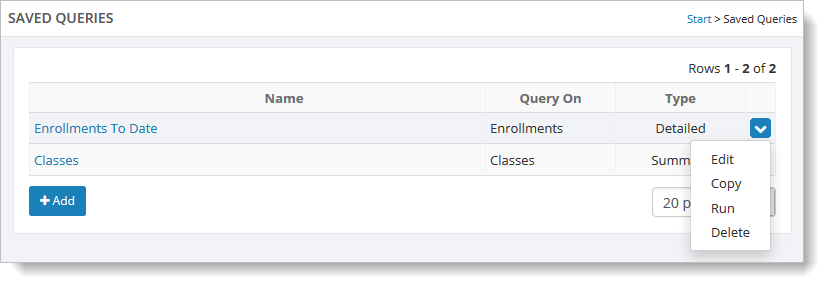
From here you can add, edit, copy and delete a user query.
Adding user queries
Click the "Add" button to start building a new user query. You will start off by entering basic information about the data you want to query.
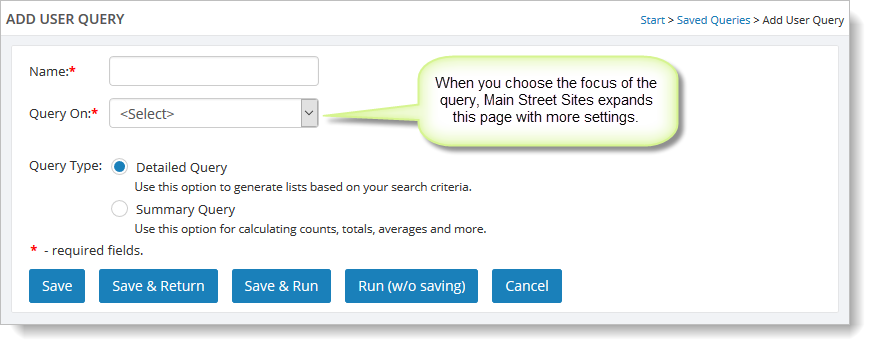
When you make a selection for "Query On," Main Street Sites expands the page with additional settings for the query.
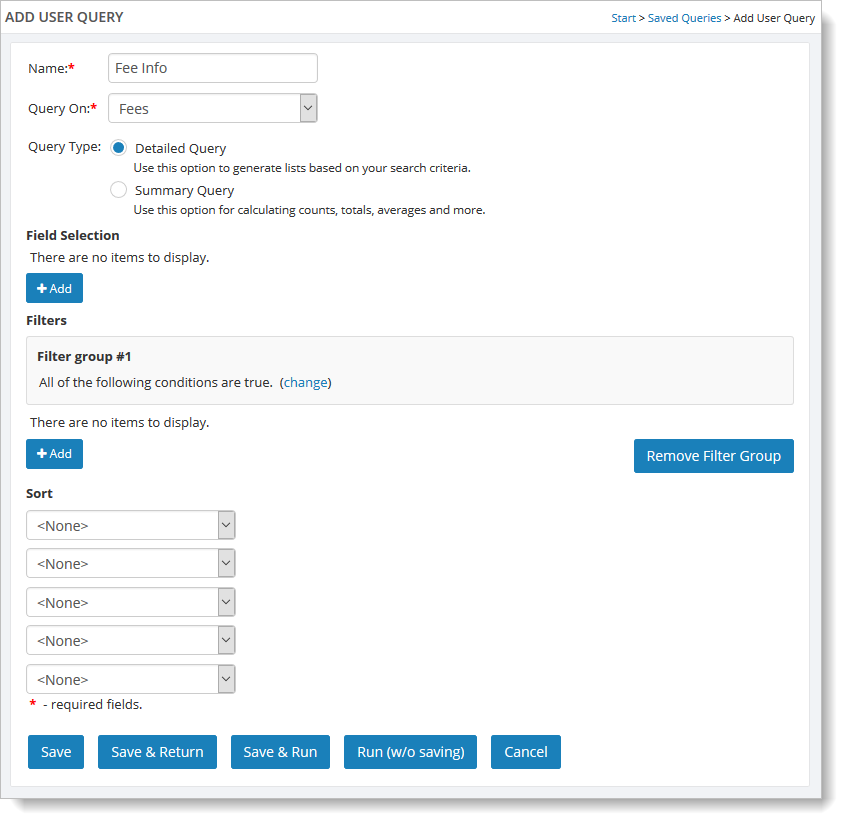
At minimum, you should add fields to the query in the "Field Selection" section.
You can make any additions or changes to the "Filters" section. For more detail on these two sections of the page, see How to enter user query data.
The "Sort" fields allow you to sort the report by any of the fields specified in the "Field Selection" section.
You have several options for saving or running the new report:
- Save—Saves the new report and the current page remains open.
- Save & Return—Saves the new report, closes the page and returns to the user query grid.
- Save & Run—Saves the new report and runs it.
- Run (without saving)—Runs the report without saving it.
- Cancel—Closes the page without saving the report.
Copying a user query
If you find a query useful, you can copy it and use it as the basis for an entirely new query.
Go to Reports > User Queries > Saved Queries.
Hover over the query you want to copy, and click on the far right blue down arrow. Select the "Copy" command.
You will see a popup that prompts you to give a new name to the copied query.
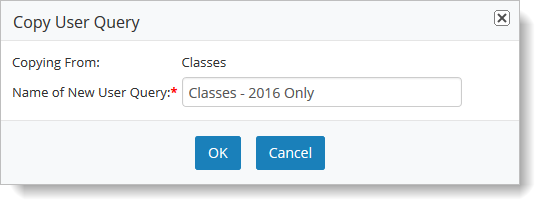
Type the name in the "Name of New User Query" field, and click the "OK" button. You will see the new query listed in the query grid.
You can open it from here with the "Edit" command and make any necessary changes to it. (For more information, see the next section.)
Editing user queries
To make changes to a query, go to Reports > User Queries > Saved Queries.
Hover over the query you want to edit, and click on the far right blue down arrow. Select the "Edit" command.
You will see the Edit User Query page with the current query criteria.
Make the necessary changes, and choose one of the save options:
- Save—Saves the edited report and the current page remains open.
- Save & Return—Saves the edited report, closes the page and returns to the user query grid.
- Save & Run—Saves the edited report and runs it.
- Run (without saving)—Runs the edited report without saving it.
- Cancel—Closes the page without saving the changes made to the report.
Deleting user queries
To delete a user query, go to Reports > User Queries > Saved Queries.
Hover over the query you want to delete, and click on the far right blue down arrow. Select the "Delete" command.
You will see a popup message asking you to confirm the deletion. Click "OK," and the user query is removed from the grid.