Confirming enrollments from Manage > Activity > Orders
Every registration that a customer enters successfully on your website will generate an enrollment. The enrollment can be in a confirmed status (like "Enrolled" and "Pending Enrollment") and take up a seat in one of your classes or be in an unconfirmed status (like "Waitlist" or "New") and not take up a seat in one of your classes.
Enrollment Statuses
For an enrollment to take up a seat in a class, it needs to be in the "Enrolled" or "Pending Enrollment" status. All other statuses don't "count" when it comes to taking up a seat in a class. They also don't count for other features that use enrollments like sending emails, printing attendance sheets, name tags, etc.
Here is a list of the enrollment statuses:
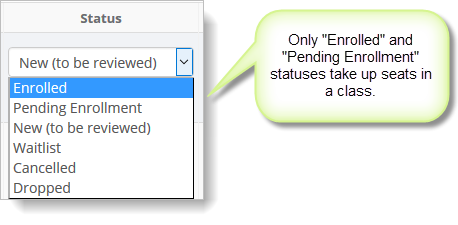
You can see enrollment statuses in Manage > Activity > Orders
You can see the enrollment status for your enrollments in Manage > Activity > Orders. We have highlighted the enrollment status in the image below:
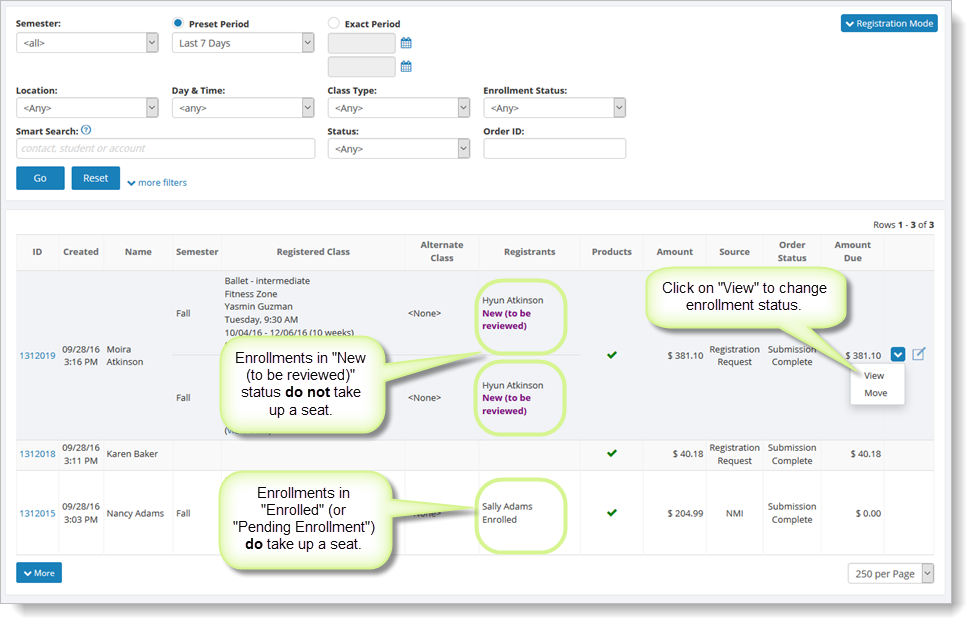
You can update enrollment statuses from Manage > Activity > Orders
Go to Manage > Activity > Orders and locate the order. Hover
over the order and click the blue down arrow on the far right. Select
the "View" command.
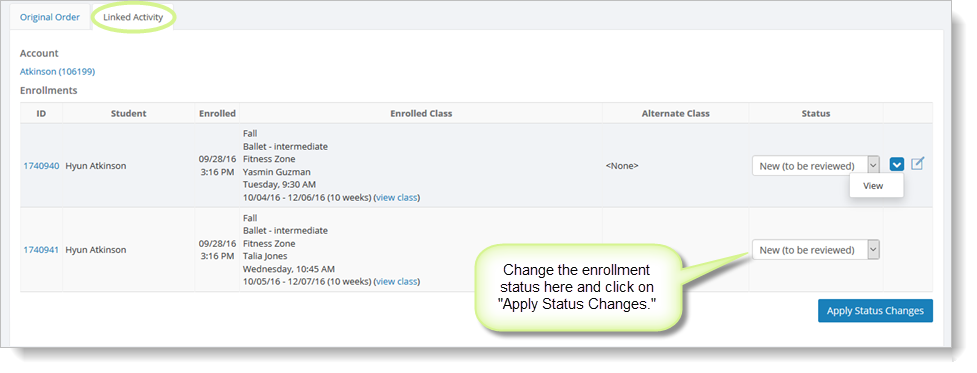
Select the "Linked Activity" tab. You will see sections for enrollments, fees and payments. In the "Enrollments" section, change the enrollment status to the new status and click on "Apply Status Changes." Use the "Back" button at the bottom of the page to return to the previous page.
You can set the default status for new Pay Later and Pay Now registrations
In addition to changing the enrollment status manually as shown above, you can also control the default value for enrollment status for all new registrations.
You may prefer that new Pay Later registrations take up seats in their respective classes until you decide otherwise. Or you may prefer that new Pay Later registrations do not take up seats in their classes until they have been confirmed by you (on receipt of payment, etc.).
You can control this behavior by setting the default status for new enrollments in Setup > Settings > Online Order Settings, shown here:
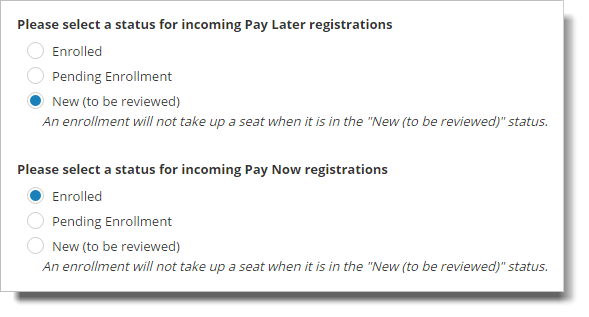
For example, if you would like new Pay Later registrations to default to "Enrolled" then select "Enrolled" in the "Please select a status for incoming Pay Later registrations" section.
To learn more about enrollments, please see the Enrollments Overview.