New Accounts
The New Accounts feature is a way for you to review any accounts that Main Street Sites has tagged as "new." Accounts are tagged as new when a user registers online for a class and fills out the contact information.
Seeing your new accounts in a list on the New Accounts page is useful for identifying new students on the first day of class (providing a welcome packet, for example).
To see new accounts, go to Manage > Accounts > New Accounts. From here you can select various criteria for displaying new accounts, such as by semester or by review status.
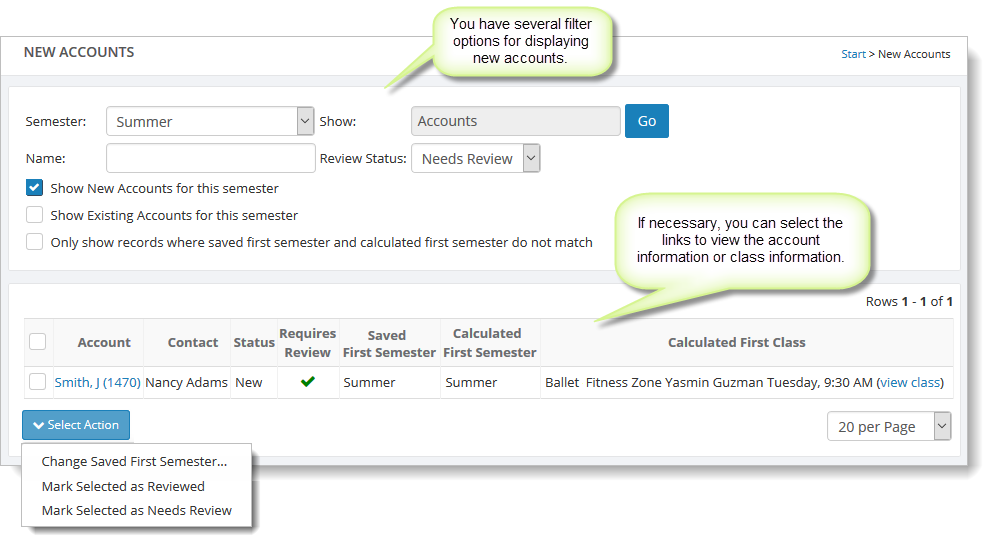
To mark a new account as either needing review or already reviewed, select the checkbox to the left of the account name and click on "Select Action." Select either the "...Reviewed" command or the "...Needs Review" command. If you select "...Needs Review," Main Street Sites adds a checkmark to the "Requires Review" column for that account.
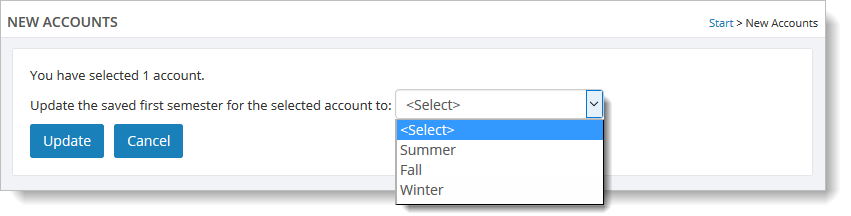
If necessary, you can change the saved first semester for a student (for example, if he or she has decided to delay their start to a later semester). To do this, select a new account (using the checkbox to the left of the account name) and click on "Select Action." Select the "Change Saved First Semester" command.
Select the appropriate semester and click on "Update."