How to customize your registration page
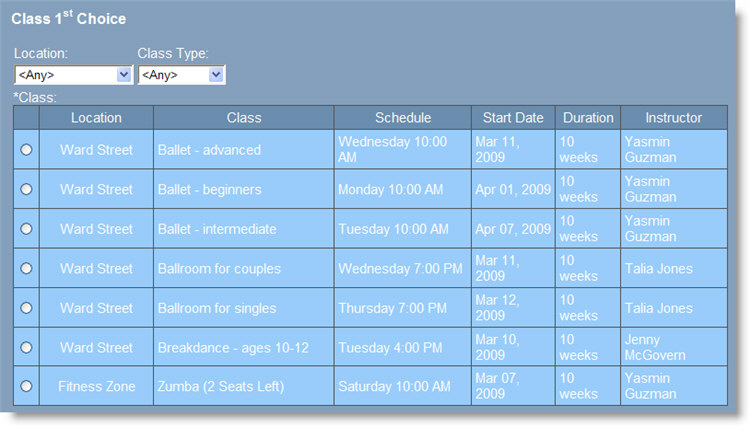
Main Street Sites creates a default layout for the classes grid on your registration page. It looks something like the example below. With the Named Layouts feature you can configure this layout to suit the needs of your business and/or your personal perference. You can add columns, change the column order, change the column header labels, remove columns, change grouping and sorting, add filters, etc.
Here is the default classes layout on the registration page:
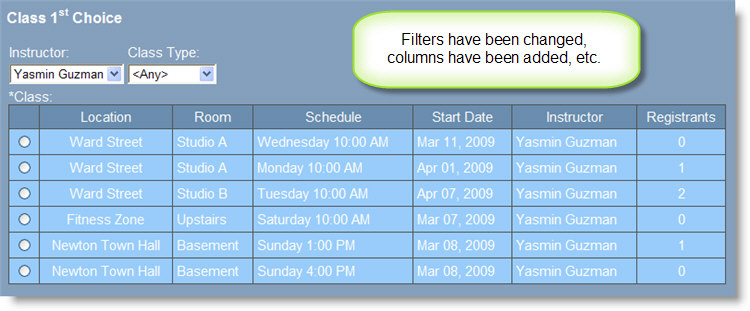
Here is an updated layout for the registration page. Note that new columns have been added and other columns have been removed. The filters have been changed as well.
To update the default named layout used by the registration page, go to Website > Named Layouts.
You will see that a default set of layouts has been created for you automatically. There should be a layout for your classes page and for your registration page, as shown here.
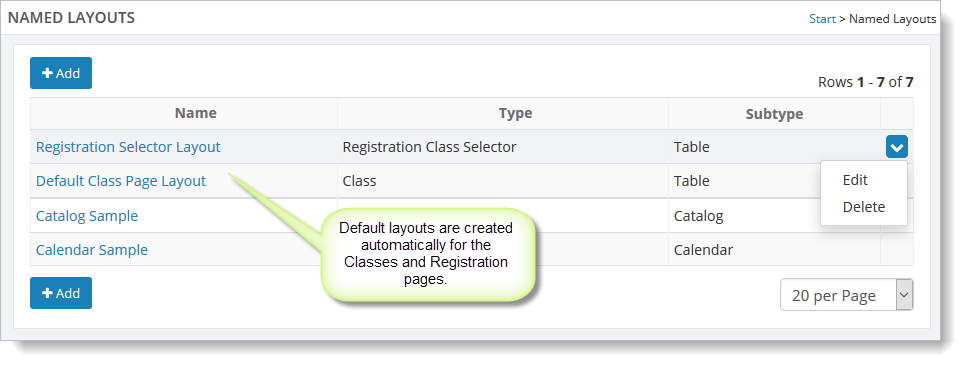
To create a new layout, select the "Add" button.
To edit a layout, click on the layout name (e.g., Registration Selector
Layout). You can also hover over a layout, click on the far right blue
down arrow, and select the "Edit" command.
On the Edit Layout page, you can add a filter if you don't want all of
your classes to show at once time. You can change the grouping and
sorting of your classes. In the grid section, you can update the columns
used to show your classes.
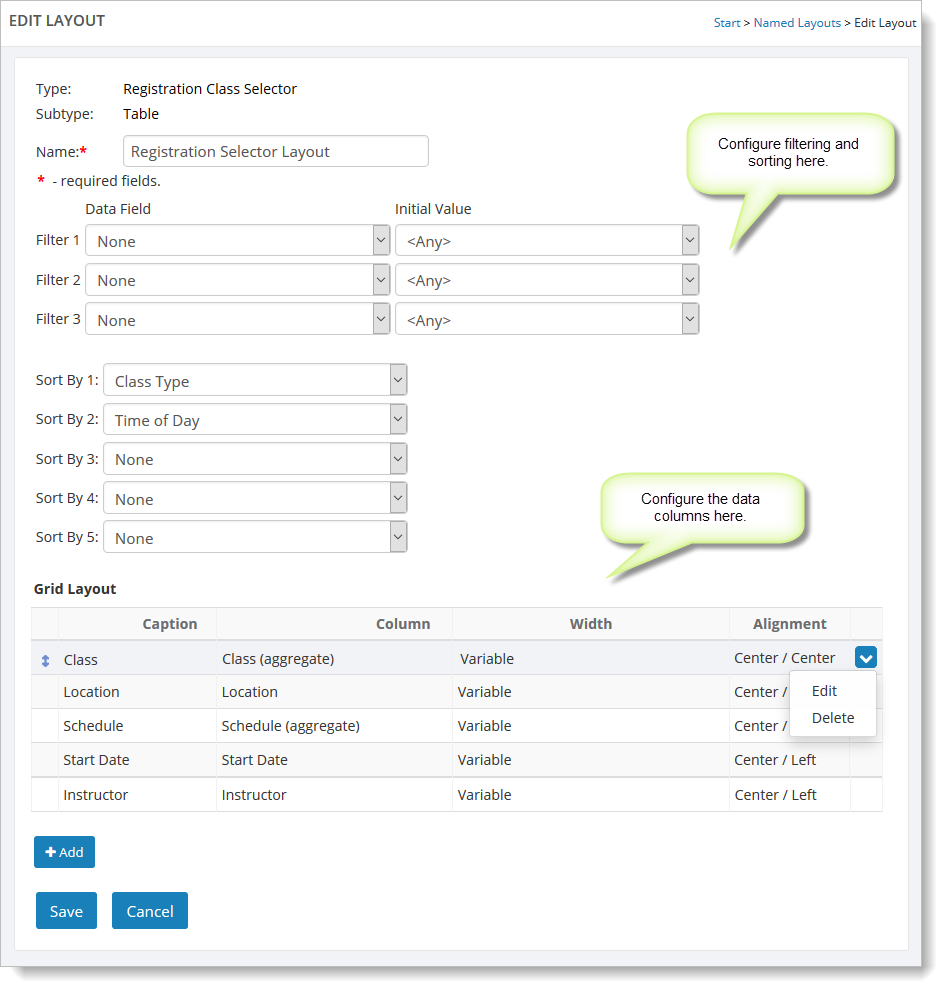
When you add or edit a column, you can specify the caption for the column header, the data source for the column, and the width and alignment of the column.
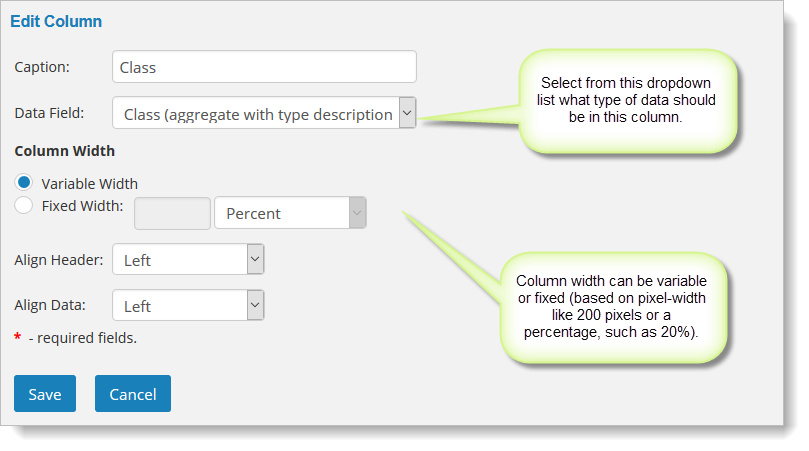
Column widths can be variable (i.e., let the browser decide how best to
show the column) or fixed. Fixed columns widths are expressed as a
percentage of the screen width or as a fixed number of pixels. When
working with column widths, you may find you need to experiment.