Reconcile Accounts
The Reconcile Accounts function enables you to review any contact information that a user entered during an online order process. This information may be close to an existing account but not quite a match. You can review the information and decide if any of it should be copied into the existing account. Matching up this information also ensures that the order is correctly attached to the correct account.
Reconciling accounts is occasionally necessary if someone registered for a class online or made an online purchase without logging into their account first. When this occurs, Main Street Sites marks for review the contact information that the user entered. You should make it a habit to regularly use Reconcile Accounts to keep your accounts and orders organized.
To review and reconcile, go to Manage > Accounts > Reconcile. If any unreconciled accounts exist, you will see them in the grid.
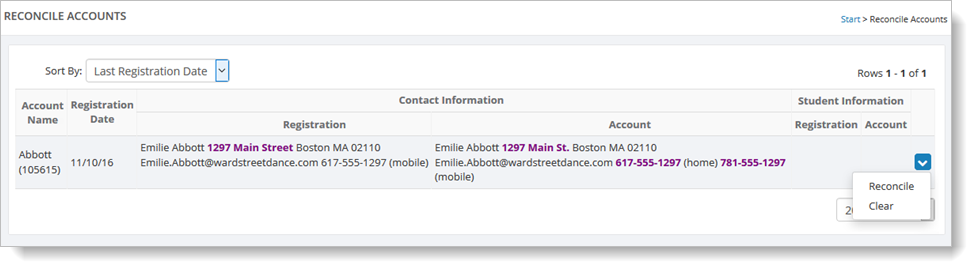
If you know the online order information (shown in the Registration column) and the existing account (shown in the Account column) do not belong together, you can clear the row. Hover over the row and click on the far right blue down arrow. Select the "Clear" button. Main Street Sites immediately removes the row from the grid.
To reconcile the information in the Registration column with that in the Account column, hover over a row and click on the far right blue down arrow. Select the "Reconcile" command.
You will see a page that enables you to examine the two sets of information. You can copy over the contact information, the student information, or both. You can also choose to not copy over information.
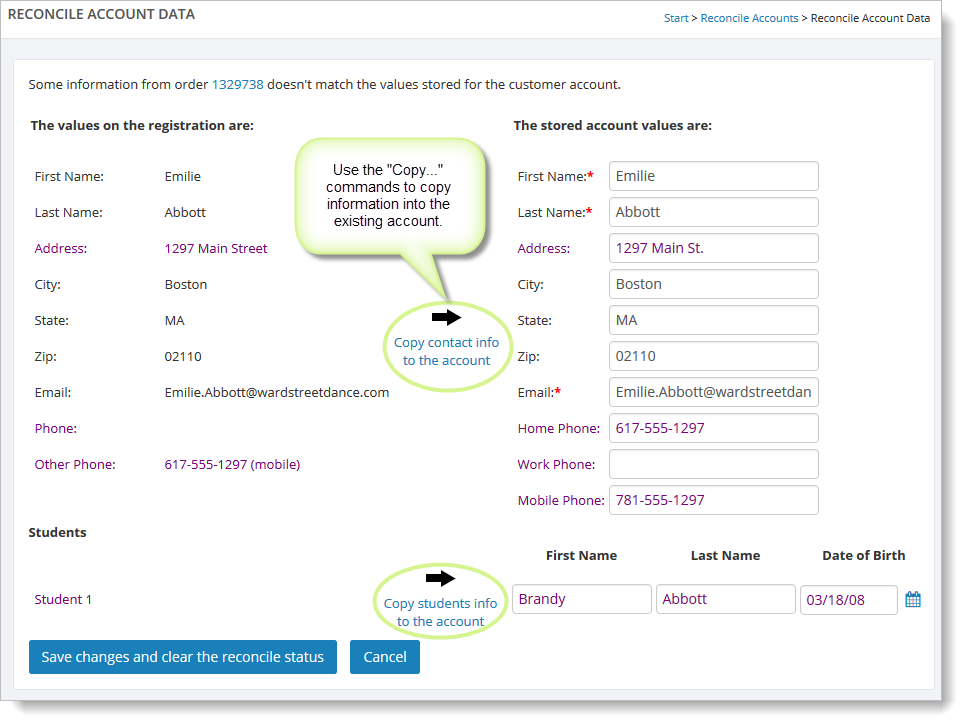
Select "Save changes" button. Main Street Sites displays a message to let you know the reconciling was successful.
You can now view the order from within the account by going to Manage > Accounts > Accounts and looking up the correct account. Select the "Product Purchases" tab to see orders.