Users
The Users feature allows you to grant access to your Main Street Sites account for your staff and/or business partners.
Before you can create users, you'll need to create security profiles for those users. See Creating Security Profiles below on how to create security profiles for help with this.
Below is a sample list of users. Note that the Main Street Sites account holder is always listed first in this list and is not editable from here. Use the secure My Account tab from the main menu if you need to update the account holder's information.
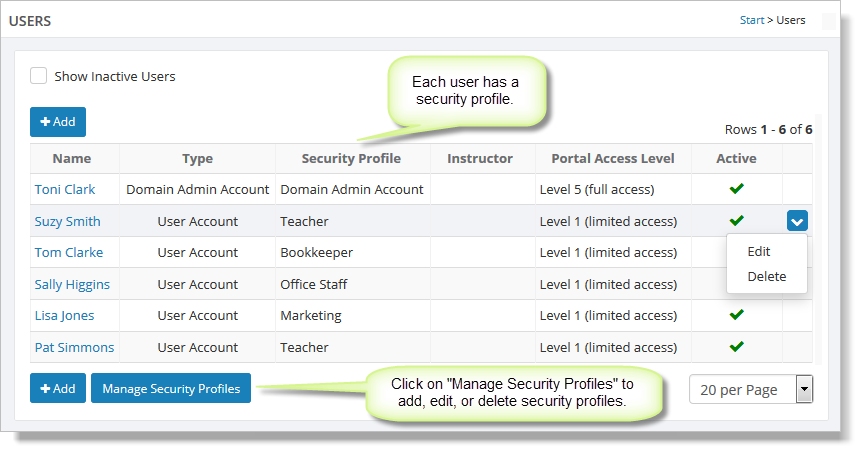
To edit or delete a user, hover over the user and click the blue down arrow on the far right. This action displays a drop-down list with both the "Edit" and "Delete" commands. You can also edit a user by clicking the user name. This action takes you to Edit User (shown below). There is a link for managing security profiles at the bottom of this page.
Click the "Add" button to add a new user. You will be presented with a form to fill out. Enter the information about the user and click the "Save & Return" button to add the user to the grid.
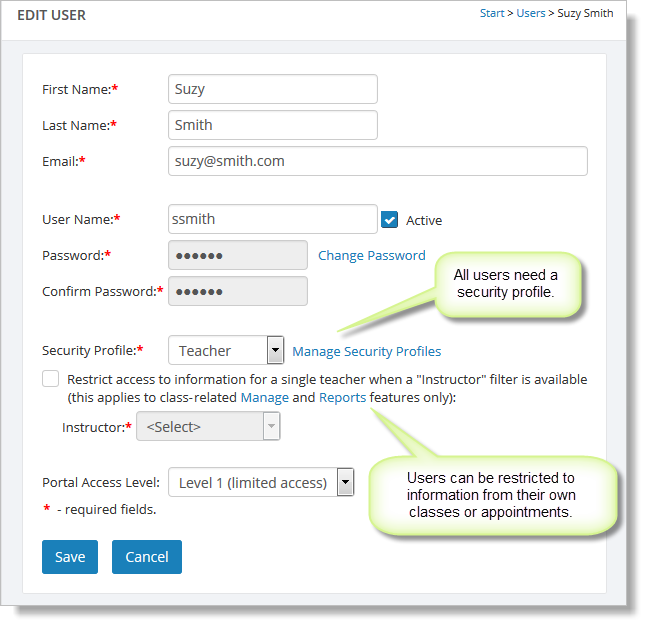
In addition to selecting a security profile for your new user, you can also use the option to restrict data access for this user to a particular teacher from Setup > General > Instructors. When you use this option, the user will only ever be able to select that particular teacher in features like Attendance Sheet report or Manage Classes. Support for this feature does not extend to tools like User Queries.
The "Portal Access Level" setting is used with the customer portal features of your web pages. You can use this setting to grant access to certain web pages to your staff in this way. See the Customer Portal Overview for more information on how this works.
Important: If you are trying to restrict access to certain parts of your account or your customer data, be sure to test the user account(s) and security profile(s) you have created.
Creating Security Profiles
You'll notice at the bottom of the Users grid is a "Manage Security Profiles" link. You'll need to create at least one security profile to grant people access to your Main Street Sites account. The security profile is a list of Main Street Sites features and checkboxes indicating the ability to view, edit or run that feature. For example, to give teachers the ability to update classes, you'd need to give them the "edit" permission for Manage > Classes > Classes feature.
Below is a list of some security profiles one might use:
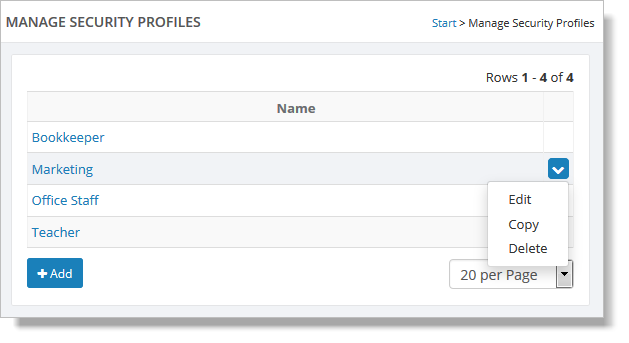
To edit or delete a security profile, hover over it and click the blue down arrow on the far right. This action displays a drop-down list with the "Edit," "Copy" and "Delete" commands. You can also edit a user by clicking the user name. This action takes you to Edit User (shown below).
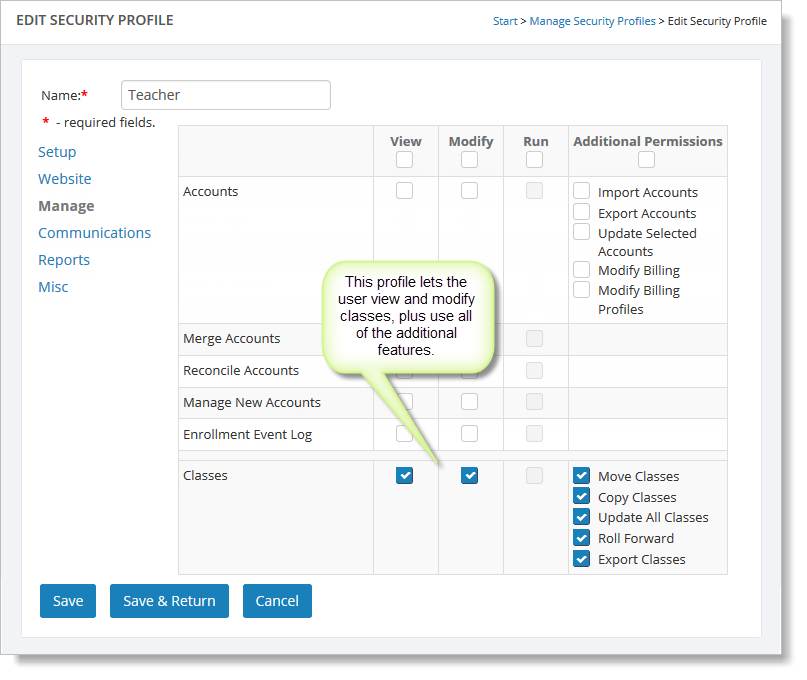
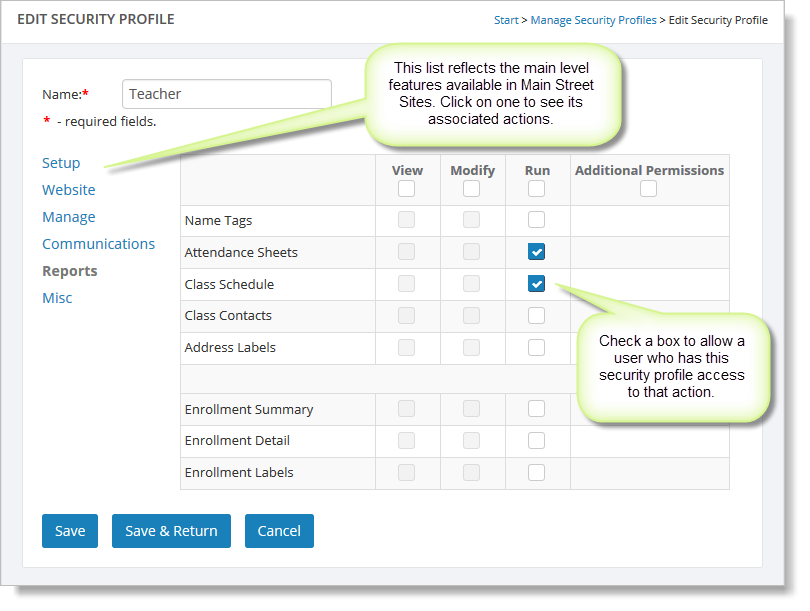
As you can see in the example below, the main level Main Street Sites features (Setup, Manage, etc.) are listed on the left side of the page. Click on one of these main level features to see the tasks associated with it. In some cases, an action will have special additional permissions on the far right column (like the permission for importing contacts).
This example shows how to grant the permission to run certain reports:
The next example shows how to grant permission to view and edit classes. Permission to use other classes features is also granted here.