Account Events
You can view any unhandled events for an account on the Account Events tab. Enrollment events are generated when an enrollment changes. For example, when an enrollment is created or deleted, an event occurs. Another example of an event is when an enrollment has a status change from "enrolled" to "dropped."
These events are created in the "unhandled" state. When you mark an event as "handled," it drops off the event list. This enables you (if you choose) to have a workflow in place for students entering and exiting classes.
Note: In order for enrollment event logging to take place, you must turn on the "master switch." To do this, go to Setup
> General > Settings. Select the setting to "Log enrollment event
activity for accounts by default." This turns on the feature for all of
your active accounts.
To get to the Events tab, first select Manage > Accounts >
Accounts. Locate and open an account. Click on the More tab, which
displays a list of additional tabs, and click on Events.
Note: Please see the Account Common Actions for a guide to commonly used account features.
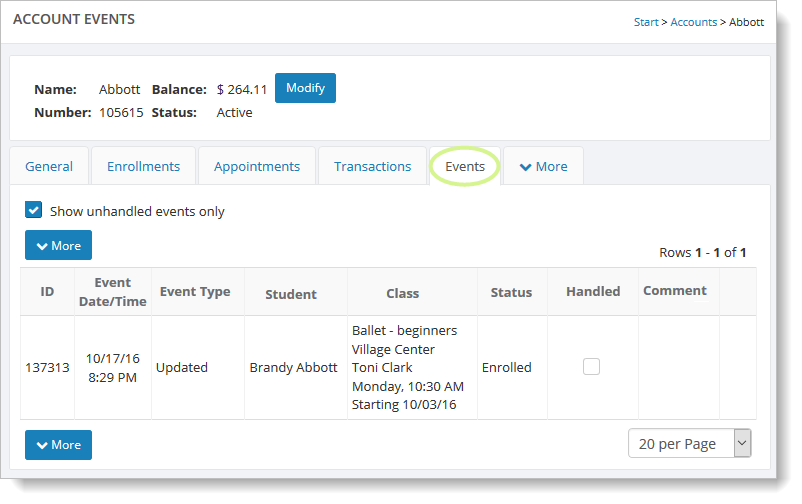
By default, Main Street Sites displays only unhandled events. If you want to change this, deselect the "Show unhandled events only" checkbox.
To mark an event as handled, select the checkbox for the event in the "Handled" column.
Besides viewing events on this tab, you can go to the Enrollment Event
Log for a system-wide list of unhandled events. Go to Manage >
Accounts > Enrollment Event Log. For more information on enrollment
event logging, see How to use the enrollment event log.