Working with Built-in Pages
Included with Main Street Sites are several built-in pages that you can edit to reflect your unique personality and business. To find the built-in pages, go to Website > General > Built-in Pages. You'll see a grid with each page listed on its own row. The items in the grid will vary based on the options selected for your account.
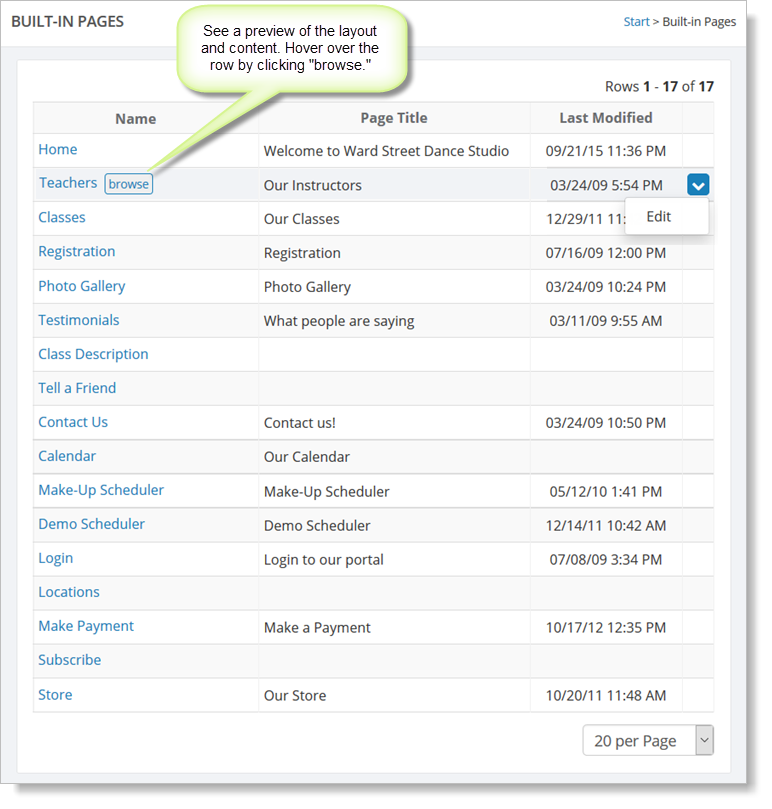
From the grid, you can preview a page's content and layout by hovering over the page name and selecting "browse." To edit the content of a built-in page, hover over the row and click the blue down arrow on the far right. This action displays a drop-down list with the "Edit" command. You can also edit a built-in page by clicking the page name (e.g., "Testimonials"). This action takes you to the editing page for that built-in page (shown in the following section).
General editing tips
In the large text box on the Page Content tab, you can use the toolbar to set fonts and colors and to insert links, media
players, etc. Please see How to use the content editor for detailed
information on using the editor windows.
To add links to your pages, see Working with links.
If you wish to change the menu for your site so this page appears in a different order (or not at all), see How to customize your menu.
If you wish to optimize this page for the best possible search engine results, please go to How to use SEO tools.
You can click on the "Browse" or "Preview" buttons in the upper right to
see how your changes look without actually saving them. If your browser's popup blocker is preventing you from seeing the preview page, it may help to hold down the CTRL or command/Apple key when using preview. You may also prefer to disable your popup blocker for the Main Street Sites website.
Main Street Sites doesn't save your changes until you click on the "Save" button.
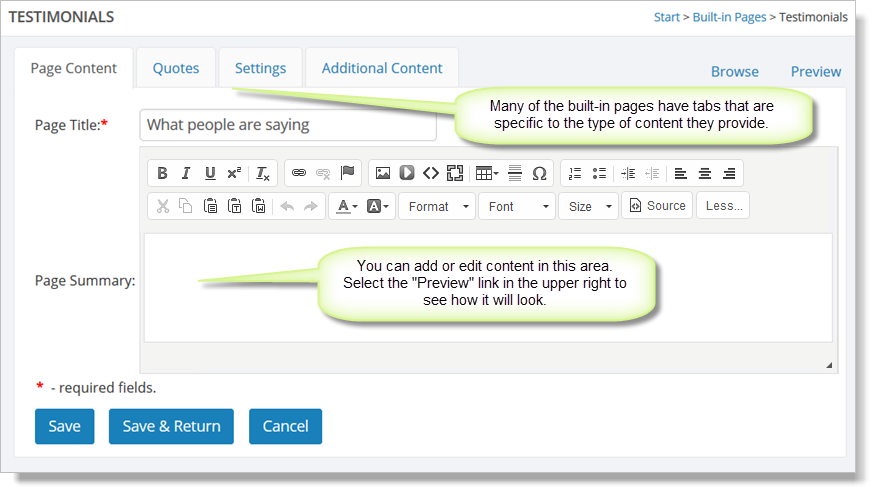
Many of the built-in pages have tabs that are specific to the type of
content they provide. For example, the Testimonials page (shown above)
has a "Quotes" tab. For more information on these special settings, see
the relevant section in Additional Information About Built-in Pages.